






Most WooCommerce stores already have something worth promoting, whether that’s a free shipping threshold, a quantity discount, or a free gift. The trouble is where those offers live. Their presence is in the homepage banner or footer note that most shoppers will never see, so when they want to make a purchase, there is no impact. Traffic is healthy, add-to-cart numbers are decent but the average order value continues to remain stuck.
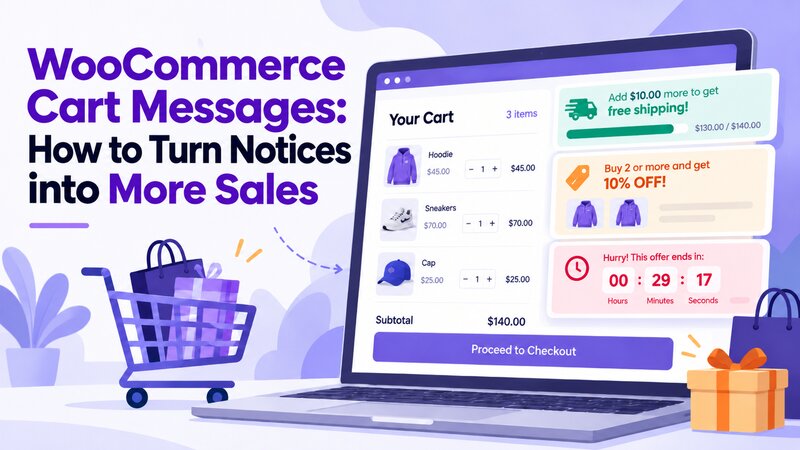
The fix is to move the message to where the decision happens. A single line on the cart page, such as “You’re $16 away from free shipping,” shows shoppers exactly what they’re missing while they can still act on it. Your products and prices stay the same. The timing of the information being presented is the only thing that changes.
This is a guide to the importance of WooCommerce cart messages, how stores can leverage them, how they work and how to implement them without being pushy about it.
Why Show Messages Inside the Cart at All?

The cart is where a shopper’s intent is highest. They already have picked a few products, so a push there requires far less from them than winning over a new customer does.
- Increases average order value. Shoppers often stop just short of a reward without realizing how close they are. Say your average order is $34 and free shipping starts at $50. A line reading “You’re $16 away from free shipping” gives them a reason to add a $16 item. Every order that crosses the line lifts your AOV.
- Turns single items into multiples. An offer such as “Buy 3 or more, and save an additional 15%” when a customer adds a second product to his cart makes a larger purchase the obvious choice. If a customer adds a third candle to his cart, he will get 15% discount on the $60 order, but you will still make more money than if he would have bought two products at $40.
- Lifts sales of specific products. Messages can direct customers to the products you wish to offer. “Add one more clearance item and get an extra 10% off” clears stock faster, while “Check out our new arrivals and get 5% off when you add one” puts a launch in front of people already in a buying mood.
- Ensures promotions are profitable. A sale is only for improving revenue if the customers notice it while developing an order. If it reads “Black Friday deal: add one more item and save 20%”, it creates a sense of urgency and action. If it has a countdown or is only available on a weekday, “Black Friday deal: add one more item and save 20%” includes a deadline and a clear call for action. People who may have purchased one thing now purchase two.
- Speaks to each shopper differently. WooCommerce cart messages can react to who is purchasing and what’s in the shopping cart. A premium-products-loving individual might see, “Add another premium item to take advantage of an exclusive reward,” whereas the sale-products-loving person will be able to see, “Add one more sale item for free shipping.” The closer the prompt is to the theme, the more likely it is to be effective.
What Is Conditional Cart Messaging in WooCommerce?

Conditional cart messaging means showing a message to a shopper only under specific conditions. This condition can be the total of the cart, the number of products, a product category, or even the date. If the condition is true, then the message is displayed. When it is false, it will not display.
This is compared to a typical store-wide banner. A banner will display the same message to users with just one product in their cart as well as those with 10 products in their cart. A conditional message is one that responds to the behavior of the shopper. A person with $20 in their shopping cart views a different message from a person with $48 in their shopping cart, but both messages are helpful in pointing them in a helpful direction.
You will see this idea called by different names: WooCommerce cart messages, WooCommerce cart notices, dynamic cart messages, or cart page notifications. All these are referring to the same thing, a short message attached to a rule.
The Main Types of Conditions You Can Use
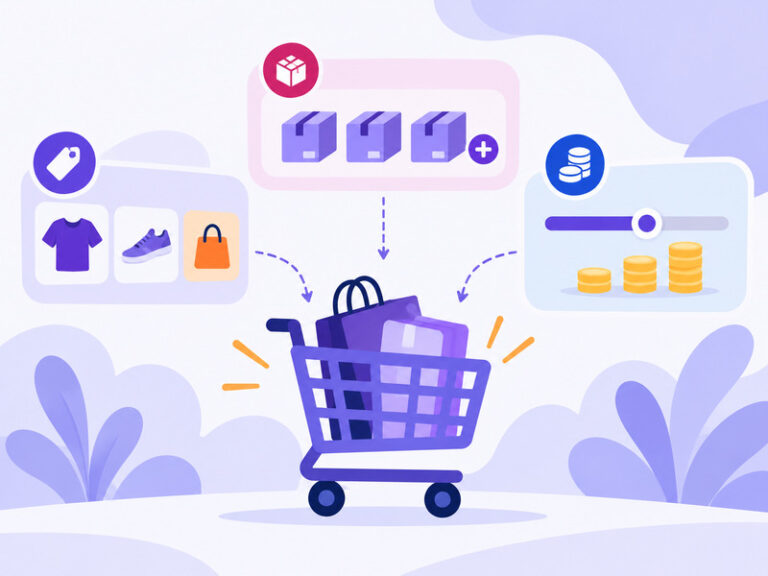
Most conditional cart messaging systems work with three kinds of rules.
- Simple rules display a message if an item or a category is added to a shopping cart. For instance, “Free gift wrapping on all candles” is a good line. No maths involved, just a match.
- Price-based rules are based on the total of the items in the cart. These are the old fashioned “spend $X more” messages that are associated with a free shipping offer, discount or free gift. The reason these WooCommerce cart notices work well is because the objective is clear.
- Quantity-based rules count items. “Buy 3, save 15%” is the textbook case, and a WooCommerce quantity discounts plugin can apply the real discount to mirror your message. They are best used in stores that carry consumables, accessories or items that people typically purchase more than once.
In addition to the rule type, most often you’ll be able to specify what a message is applicable to: one product, a whole product category or the entire store. You can also define start and end dates for a message to show only during a sale and being removed automatically afterwards.
How to Show Custom Messages on the WooCommerce Cart Page

There are two realistic routes.
The first is custom code. WooCommerce provides hooks that allow a developer to print notices on the cart page; a few lines of PHP code can be used to display a ‘free shipping’ notice or any other of one of WooCommerce’s cart messages. This will work for a single email message. Fastly getting messy when you want multiple rules, scheduling, styling and multiple pages.
Every change involves coding and each update of your theme or WooCommerce comes with some risk of breaking it. If your needs go beyond what a plugin offers, custom WooCommerce development services can build the logic properly instead of leaving you with a fragile snippet.
The second route is a dedicated plugin. Dynamic Cart Messages Pro for WooCommerce is one WooCommerce cart notices plugin built for exactly this job. Here is what a typical setup looks like with a tool of this kind:
- Create a new message and pick the rule type: simple, price-based, or quantity-based.
- Choose the target, such as a single product, a category, or the whole store.
- Write your message and add the dynamic pieces, like the remaining amount.
- Add a call to action, such as a button that links to the offer terms or a collection page.
- Pick where it appears: cart, checkout, product page, or all three.
- Set start and end dates if it is a timed promotion.
- Preview it, then publish.
The larger catalogs can have their own headaches, too. If you would like the same “free shipping” message for 60 products from the various categories, then it would take an afternoon to get them all in. To overcome such issues, bulk selection allows you to use the same message for multiple products.
Using Urgency to Encourage Shoppers to Complete Their Purchases
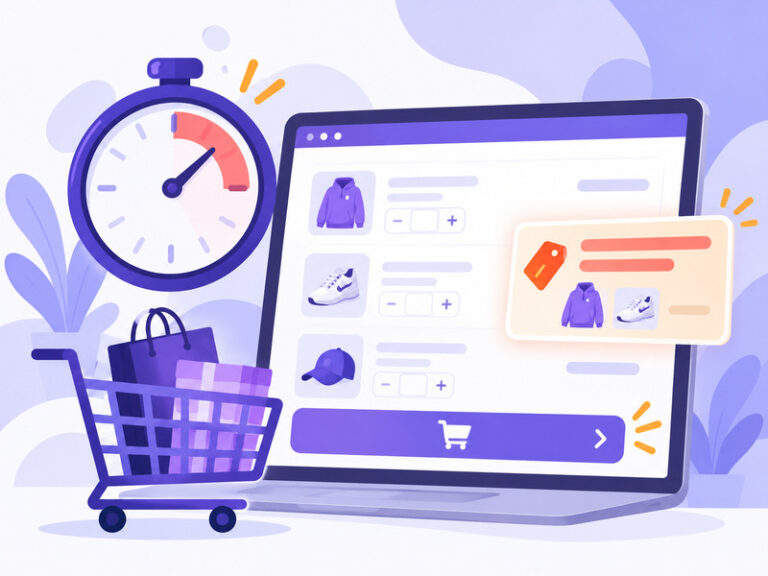
Countdown timers can add a useful push to a conditional message. There are two common types. A scheduled countdown for a set date and time and is ideal for flash sales and holiday deadlines. For any ongoing promotions, such as “Complete your order in the next 10 minutes for 5% off”, an evergreen countdown is an effective way to keep it going.
The important thing is to select a timer that fits your offer. Not all promotions require a countdown, and a countdown timer that is reset at an inappropriate time can lead to customer confusion or set expectations that can’t be met. In one instance, we developed a countdown timer for a client that resets at a particular time each day. The Timer announced the time limit for the same day delivery, which helped the customers understand the time they had to place their order and avail the same day delivery. This approach made the countdown real instead of being a random date.
When utilized like this, WooCommerce cart notices with explicit deadlines can be used to inspire purchasers to make purchases earlier. If someone adds something to their shopping cart but hesitates, they might just need a reason to add it to their cart now rather than later. A countdown timer that lets users know how much time they have to get a product the same day, or a statement as to the actual low stock count, can be just the motivation without the pressure. WooCommerce plugin development services can help you create a solution that mirrors the reality in your store if you’d like to tie these messages to business rules, real inventory levels or even customer data.
Tips for Using Cart Messages Well

- Set thresholds within reach. No matter how good the message is, if the target feels out of reach it will be ignored. If they know that when they add up 30 dollars each time they’re buying a cart, it will take them $150 before they can get free shipping, they will give up. One of the general guidelines is to set it 20 to 30 per cent higher than your average order value, so if your average order value is $30, you want to look for a threshold of $36 to $39. Recheck your numbers every few months since as the average order value increases, so should the value you set.
- Show one or two messages at a time. A pile of five promotions becomes noise for most shoppers since they only read a line or two at most. Let the priority settings determine the winner for each cart, based on what each one thinks is most important. If a customer is just one dollar short of free shipping, for instance, the message should be displayed before a general new arrivals advertisement.
- Be specific. Abstract messaging, such as “Save more when you spend more,” provides shoppers with no action to take. State the reward and the specific amount, such as “Add $16 more for free shipping.” Live figures that update as the cart changes do this nicely, as shoppers are able to see the distance between the two grow smaller with each item they put into the cart.
- Use end dates. Every promotional message should have a finish line. Setting start and end dates means a holiday offer disappears on schedule, with no one needing to remember to switch it off. A “Black Friday deal” notice still showing in February makes a store look neglected, and it can mislead shoppers about prices they can no longer get.
- Match the message to the shopper. One message for everyone is rarely the best message for anyone. Someone browsing sale items responds to different language than a person buying premium products. Targeting by product or category lets you say “Add one more sale item and get free shipping” to the first group and “Add another premium piece to unlock a reward” to the second. Both messages feel relevant instead of generic.
- Check small screens. Many customers will read what you wrote on their cell phone. A neat line on a bigger screen might end up in four awkward rows, or take up so much space that the checkout button is too far out of view on a smaller screen. Read each message on a phone-sized screen and limit the message to easy-to-read length. Use a button to link to the terms if there’s a lot of words needed to explain that offer.
Final Thoughts
Conditional cart messaging works because it meets shoppers where they already are, inside the cart, with information that matches what they are buying. Set a rule, write a clear message, choose a page and let the store do the talking. Establish a message of free shipping or discount, observe the response, and expand.
If you don’t want to write all the code yourself, you can use a special cart message tool like Dynamic Cart Messages Pro to set up all of the rules, targeting, countdowns and styling in one location. For whatever path you choose, make your messages clear, specific and actionable. That is what makes a line of text a few more completed orders.
Frequently Asked Questions
What is conditional cart messaging in WooCommerce?
It is a way of showing messages to shoppers based on rules such as cart total, item count, or product category. The message appears only when the rule is met, so it stays relevant to each shopper.
Do cart messages really increase average order value?
They may assist, primarily when they refer to a readily available prize such as free shipping or a discount. Test and measure, don’t assume, as results are dependent on the store, the price range and offer.
Can I show different messages for different product categories?
Yes, as long as your tool supports category-level targeting. You can set one message for a single product, another for a category, and a third for the whole store.
Do I need coding skills to add cart messages?
If you use a plugin, then no! It is possible to use custom code in the WooCommerce hooks, but with a plugin you get the visual rules, interface, styling and scheduling without coding
Can messages appear on the checkout and product pages?
Yes. There are numerous tools available that will enable you to include a message on the cart page, checkout page, product page, or every page.
Is there a free way to try conditional cart messages?
There are plugins that have a free version of their plugin with basic features and some even have a demo site to test the features prior to purchase. For instance, you can use the free version of Dynamic Cart Messages Pro from WordPress.org.
How many messages should I show at once?
There should be one or two per cart. If more than one rule applies, prioritize the most useful message first.
Will cart messages help with abandoned carts?
They can. With reminders of deadlines, low stocks or a small discount for completing the order, the shopper who has been cool will be encouraged to keep going. They work best alongside other recovery steps such as follow-up emails or abandoned cart recovery plugins.

Written by Editorial Staff
Editorial Staff at SaffireTech is a team of WordPress experts who loves to explore and write about WordPress Themes & Plugins.