






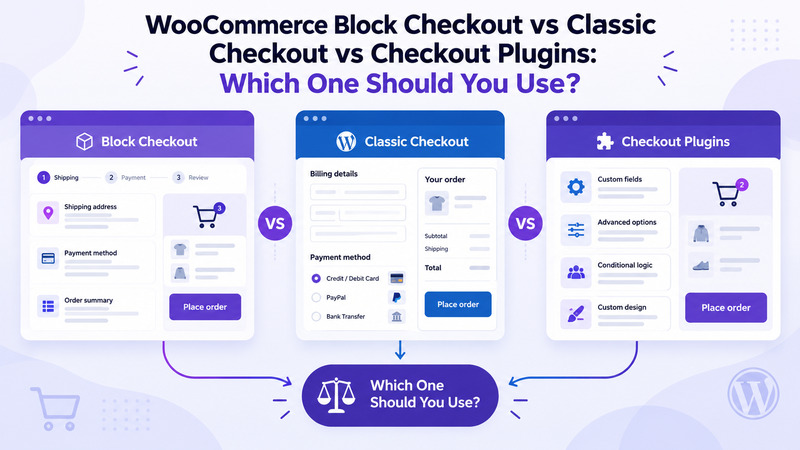
There was a time when choosing a checkout for your WooCommerce store was relatively simple: You took the default setting and went on with your day. There are now three options: a classic shortcode checkout, the newer block checkout, and third party checkout plugins. Every one is wonderful when it’s in the right place and a pain in the wrong place.
It’s also important to get right. The checkout is the very last place before a customer pays you, and nothing can be more of a setback than a glitch at this stage. If they don’t offer a payment option that displays, or the product page is not responsive to mobile users, they can be lost at the finish line.
This guide walks through all three in simple terms, so you can choose the right option with confidence.
The Short Answer
If you want the quick version, here it is:
- Block checkout suits new stores and simple setups that use popular, up-to-date extensions.
- Classic checkout suits older stores with custom code, niche plugins, or complex workflows.
- Checkout plugins suit stores that want more control over design, layout, and conversion features without writing code.
Now let’s look at why.
What Is the WooCommerce Classic Checkout?
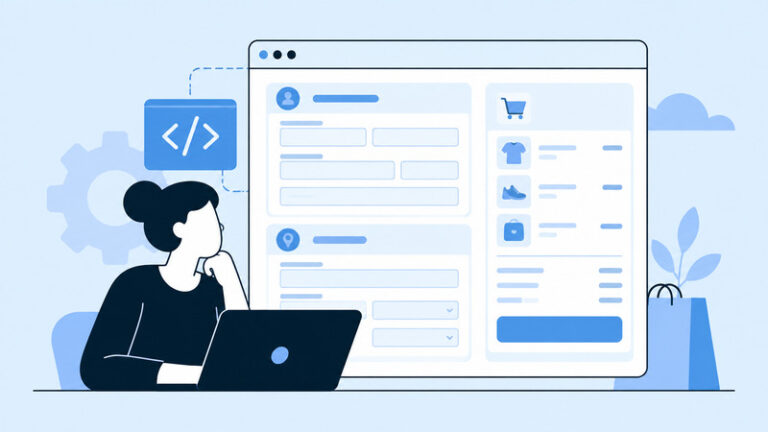
For years, the classic checkout has been the version that most WooCommerce stores have been using. It is activated using a shortcode, [woocommerce_checkout], in your checkout page. Built using PHP templates and built using hooks & filters developers are familiar with.
It’s such an old feature, that almost all WooCommerce extensions support it. The payment gateways, shipping plugins, subscription tools and custom field plugins have been created primarily with the classic checkout in mind.
Why people still like it
- Wide compatibility. It is compatible with almost all plugins and payment gateways.
- Easy to customize with code. Hooks and template overrides allow the developer to modify fields, layouts and messages.
- Predictable. Over the years, many of its quirks have been documented.
- Plenty of tutorials. If something breaks, someone has probably written about the fix.
Where it falls short
- The classic checkout can feel dated. The layout is a long form, and unless your theme handles it nicely, it may look cluttered on mobile.
- Changing the design usually means CSS tweaks, template overrides, or an extra plugin.
- It also relies on a full page reload for some actions, which can feel slower than a modern app-style experience.
- If you need to add, remove, or rearrange billing and shipping fields, you can customize WooCommerce checkout fields rather than replacing the entire checkout.
If your store has an unusual checkout, it’s possible that standard hooks and plugins will no longer suffice over time. That’s where WooCommerce plugin development can make sense, particularly when checkout functionality needs to work around specific business rules rather than simply changing the appearance of the form.
What Are WooCommerce Checkout Blocks?
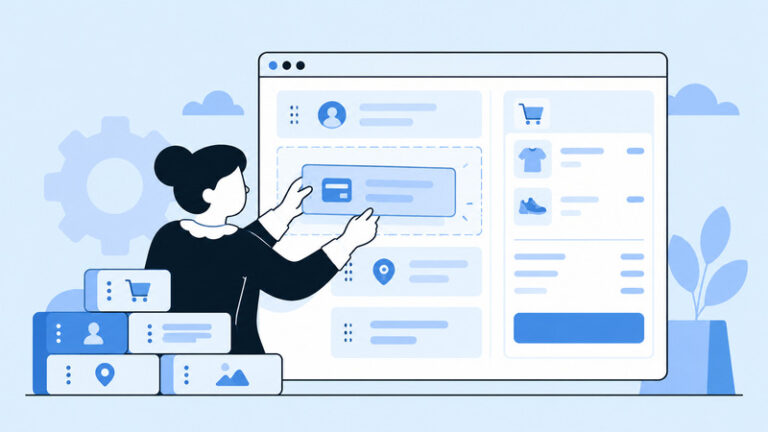
The block checkout is built with the WordPress block editor (Gutenberg). Instead of a shortcode, you add a Checkout block to your page and adjust it visually. It uses the WooCommerce Store API, which lets it update parts of the page without reloading the whole thing.
WooCommerce has been making steady progress towards blocks, and new stores are increasingly getting the blocks-based cart and checkout pre-packed. Even if the classic isn’t phasing out outright, that is the direction the platform is taking.
What you get with block checkout
- A cleaner, modern layout. The form is clean, and sticks to the bottom for a sticky order summary on larger screens.
- Faster interactions. Changing an address or shipping method updates the totals without a full reload.
- Visual editing. Section movements, text editing and block-addition are possible directly within the editor.
- Better mobile experience. It’s optimized from the ground up to be usable on smaller screens.
- Built-in express payments. Where your gateway supports them, options such as Apple Pay and Google Pay seamlessly fall into place.
The catch
The block checkout works best with extensions that have been upgraded to work with it. Payment gateways, shipping tools, or custom field plugins that have not been updated may not display, or they may perform in an unusual manner. Older code snippets that are attached to the old-style checkout won’t be taken over.
The ecosystem is still evolving as WooCommerce is continuing to add more features to the block checkout, such as additional fields. If you are using more than a handful of niche plugins, then test them thoroughly before committing.
Need help choosing or customizing your WooCommerce checkout?
Contact our WooCommerce expertsWhat Are WooCommerce Checkout Plugins?
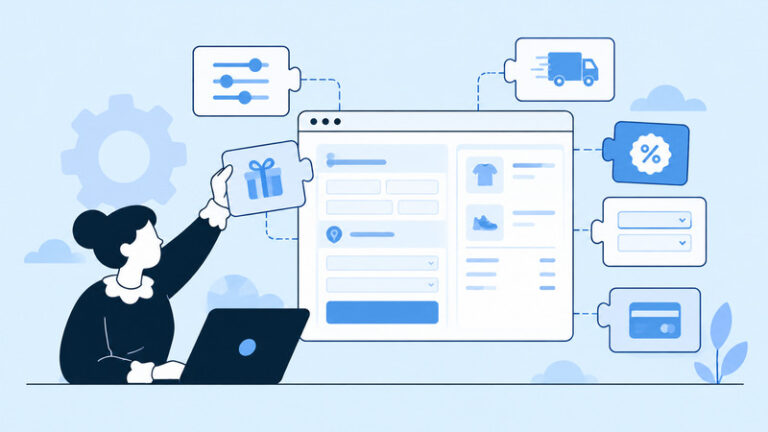
Checkout plugins are third-party tools that either replace or improve the default WooCommerce checkout. Some give you a one-page or multi-step layout. Others let you edit fields, add order bumps, or build full sales funnels.
If you’re comparing specific options, our guide to WooCommerce checkout page plugins covers several tools and the types of checkout improvements they can provide.
There are various tools that are popular to use in this area such as CartFlows, FunnelKit, CheckoutWC and Flux Checkout. This is because features and prices frequently change, so be sure to review the latest information about each plugin before purchasing.
Common features
- Custom WooCommerce checkout layouts. Single step, multi-step or two column designs.
- Checkout field editors. Add, remove, or reorder fields such as company name, delivery notes, or gift messages.
- Order bumps and upsells. Provide an additional product directly on the checkout page.
- WooCommerce Cart abandonment tools. Some incorporate recovery emails, or exit-intent offers.
- Design controls. Change colour, font, spacing without editing code.
Things to watch
The more plugins you install, the heavier your site will become. A heavy checkout plugin will result in slow pages and bad maintenance will lead to conflicts with WooCommerce updates. There are some plugins that extend the old checkout, meaning they might not co-exist with the block checkout. Always read documentation and test on a staging site first!
Side-by-Side Comparison
Here’s how the three options stack up on the things store owners usually care about.
| Factor | WooCommerce Block Checkout | WooCommerce Classic Checkout | WooCommerce Checkout Plugins |
|---|---|---|---|
| Ease of setup | Simple. Add the block and adjust settings. | Simple. It's the long-standing default. | Moderate. You'll need to configure the plugin and its templates. |
| Design flexibility | Good for basic layout changes inside the editor. | Limited unless you use code or extra tools. | Strong, often with templates and visual builders. |
| Plugin compatibility | Improving, but gaps remain. | Excellent. | Depends on the plugin and your other extensions. |
| Speed | Generally quick, thanks to partial page updates. | Fine on a well-optimized site, though it may feel slower. | Varies. Some are light, some are heavy. |
| Developer friendliness | Requires learning the newer block and Store API approach. | Familiar hooks and filters. | Usually comes with its own settings and documentation. |
| Best for | New stores and simple product catalogs. | Established stores with custom setups. | Stores focused on conversions and funnel building. |
Does Checkout Type Affect Conversions?
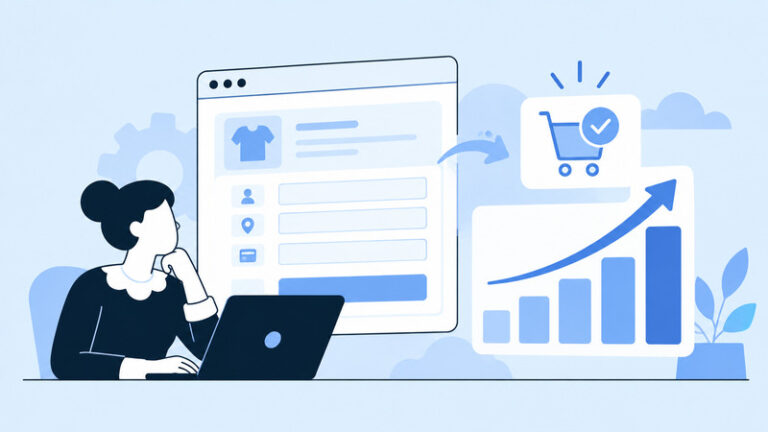
Honestly, it depends. It helps to have a clean checkout and not distract them by having long forms or confusing steps as they check out. The neat layout of the block checkout can be helpful here. Some stores may benefit from a multi-step checkout plugin, depending on audience and type of product, but it may be even better.
Everybody does not want to win just one. The best remedy is testing. Try to run an A/B test or make a comparison of conversion rate before and after a change. Keep an eye out for a decline in completed orders, unpaid payments, and support emails relating to checkout issues.
There are a couple of points more important than the type of checkout itself:
- Fewer fields: Only ask what is necessary.
- Guest checkout: This is the most common reason for people leaving.
- Clear shipping costs: Surprises at the last step hurt trust.
- Trusted payment options: Shoppers need to see payment formats they’re familiar with.
- Fast loading: It’s a matter of seconds on mobile.
How to Choose the Right Option
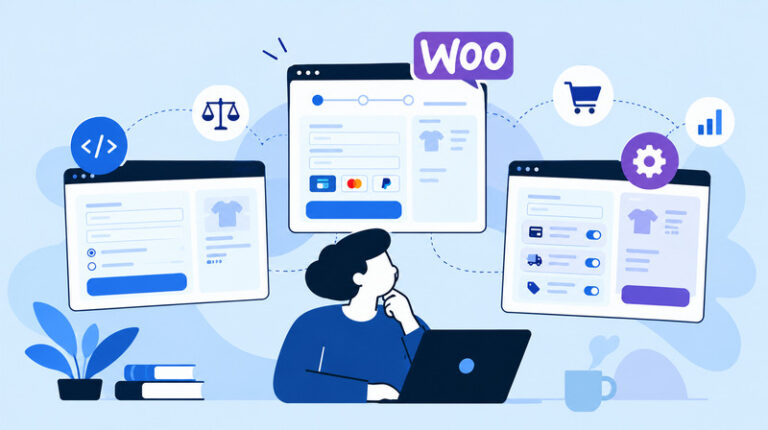
Ask yourself these questions:
- Is your store new? If yes, start with block checkout and see if your extensions work with it.
- Do you use custom code or older plugins? If yes, stay with classic for now and test blocks on a staging site.
- Do you want funnels, upsells, or a multi-step layout? If yes, look at a checkout plugin.
- Do you have a developer on hand? If yes, you have more freedom to customize any option.
- Is your current checkout working well? If yes, there’s no urgency to change.
If your checkout needs go beyond what existing extensions can handle, it may be worth it to hire WooCommerce developers for a tailored implementation rather than stacking several plugins on top of one another. This can be especially useful when checkout changes need to work alongside custom shipping, payment, product, or user-role logic.
How to Switch Without Breaking Your Store
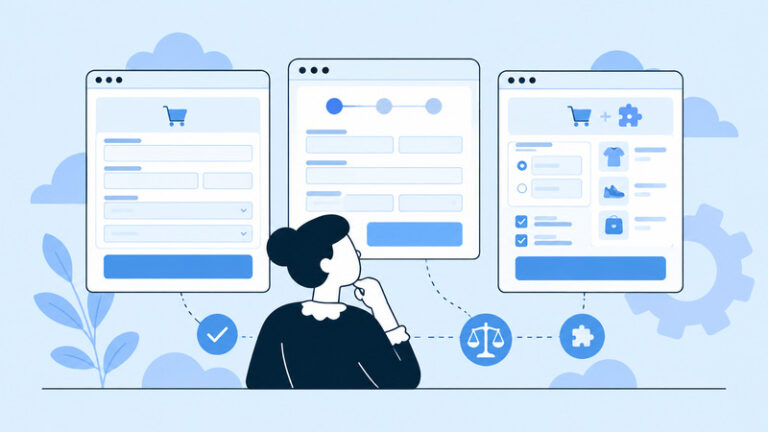
If you decide to move from classic checkout to block checkout, or to a checkout plugin, take it slowly.
- Back up your site. Do this before touching anything.
- Use a staging site. Don’t test changes in your live store first.
- Check your extensions. Check the documentation of each plugin for the block checkout support.
- Place test orders. Test out alternate payment options, shipping, coupons, and guest and logged-in flows.
- Test on mobile. Orders are a large number of which come from the phone.
- Go live at a quiet time. Pick a period with low traffic so problems affect fewer customers.
- Monitor closely. Monitor for a few days for watch orders, errors and emails.
If you’re making deeper changes to the checkout’s structure or templates, understanding how WooCommerce templates can be customized can also help you decide whether you need a plugin, custom code, or a different checkout approach.
With any potential problems, you can typically undo the alterations by swapping out the block with the standard shortcode on the checkout page. Have the backup available.
Final Thoughts
No one has a flawless checkout for each WooCommerce store. The platform is moving towards a clean and modern checkout experience with Block checkout. Classic checkout is reliable and has a broad compatibility. Checkout plugins provide flexibility and conversion tools, but come with the downside of additional weight and added maintenance.
Check your store, plugins, customers. Test before switching, and keep in mind that the very best checkout is the one that allows your customer to pay easily and you to rest at night!
Frequently Asked Questions
What is the difference between WooCommerce block checkout and WooCommerce classic checkout?
Block checkout uses the WordPress block editor and the Store API for a modern, visual setup. Classic checkout uses a shortcode and PHP templates, and it works with a much wider range of older plugins.
Is the WooCommerce block checkout better than the WooCommerce classic checkout?
Not automatically. It offers a cleaner layout and faster updates, but classic checkout has broader plugin support. The better choice depends on your extensions and needs.
Will WooCommerce remove the classic checkout?
WooCommerce is focusing most new features on blocks, but the classic checkout remains supported at the time of writing. Check the official WooCommerce announcements for current plans.
Can I customize the block checkout without code?
Yes, to a degree. You can edit text, rearrange sections, and adjust settings in the block editor. Adding custom fields may need extra tools or developer help, depending on what you want.
Why is my payment gateway missing from the block checkout?
Most likely, the gateway doesn’t support the block checkout yet. Check for a plugin update or contact the gateway’s support team.
Do checkout plugins slow down my store?
They can, especially heavy ones. Choose a well-reviewed, lightweight plugin, and test your page speed before and after installing it.
Which is best for a one-page or multi-step checkout?
A checkout plugin is usually the easiest route for multi-step or funnel-style layouts. Block checkout gives you a clean single-page layout by default.
Can I switch back to classic checkout if something goes wrong?
Usually, yes. Replace the Checkout block with the classic WooCommerce checkout shortcode on your WooCommerce checkout page, and save. Always take a backup first.
How do I test my checkout before going live?
Use a staging site, place test orders with each payment and shipping method, and check both desktop and mobile.