






A course creator I know once told me her students kept asking the same thing: “Can I finish this lesson on my phone during my commute?” Her content was strong, but the mobile experience felt clunky. Completion rates stayed low for months, and she blamed the lessons until she looked at how people were actually using them. Most of her learners were on phones, and the course simply had not been built with them in mind.
If you have courses on LearnDash, this shouldn’t seem new to you. The majority of learners today want to learn on their mobile, and the LearnDash mobile app features you choose can impact whether a course is completed or dropped. This guide explains what’s most important, and how to determine what you really need in your course before spending time and money on it.
Why a LearnDash Mobile App Matters
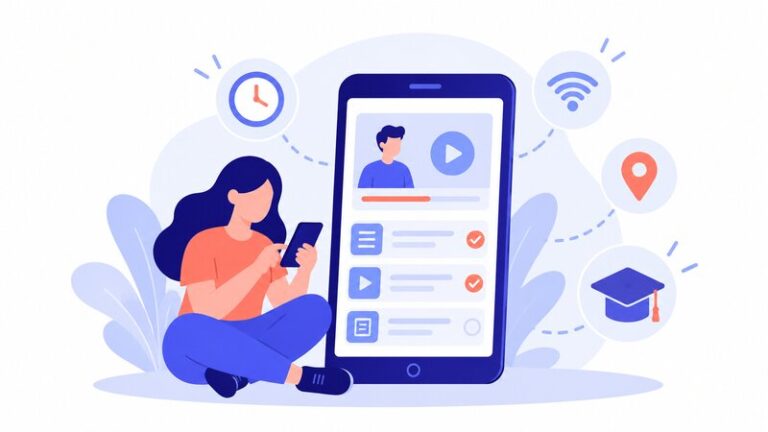
Individuals have short-term attention spans: a few minutes on the train, a lesson before going to bed, a quiz during lunch time. Mobile learning works there, while a desktop-only course requires learners to make time out of their daily schedule. Life is busy and a course that requires an hour of quiet at a desk must vie for that time with all other events scheduled.
Improved mobile access can result in increased logins, improved retention and increased course completion. These are possibilities, not promises, as the results will vary based on audience and content. It can be a big change for a course taken by a busy professional, or a very little change for a course taken at a desk during a workday. Nevertheless, the pattern is frequent enough that mobile learning definitely deserves a seat at the table with your eLearning plan.
1. Simple, Fast Navigation
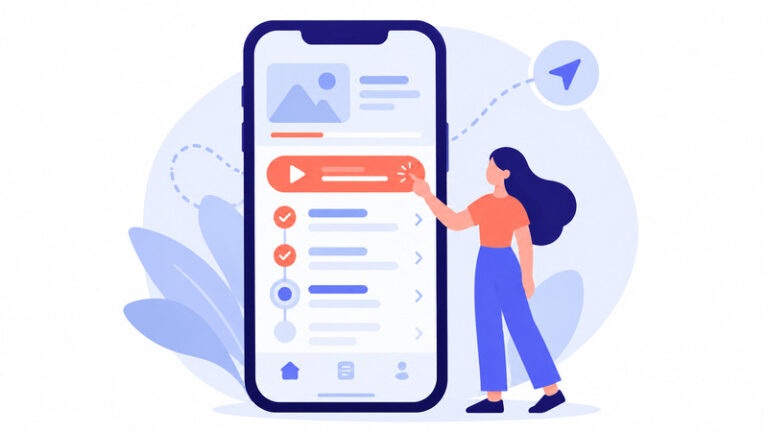
Learners must be able to find their course within seconds when they open the app. This may seem like common sense, but many mobile experiences fail to achieve this. If there is a lot of clutter at the top of the menu, or if the lesson list is buried in the menu, there is an added level of friction.
Have a clear “resume where you left off” button, easy-to-read layout for lessons, and text that doesn’t require pinching and zooming. Lesson titles should be meaningful at a glance, and buttons should be big enough for a thumb. Some students will give up on a lesson if they need to hunt for it. Make it as easy as possible to open the app and begin a lesson, and try it out with one hand– how most people hold their phone.
2. Offline Access
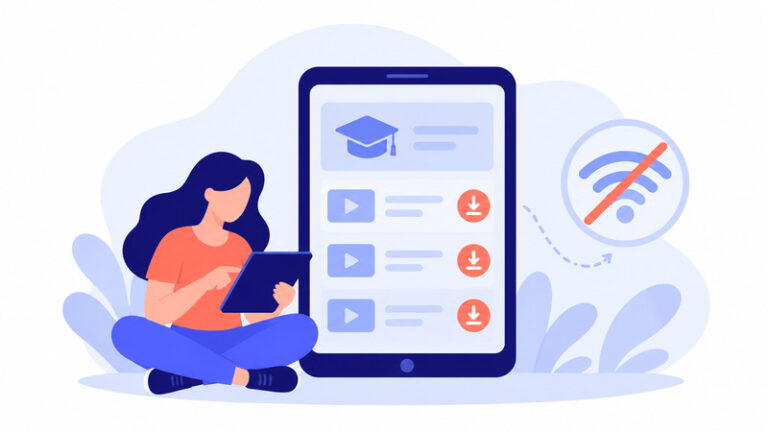
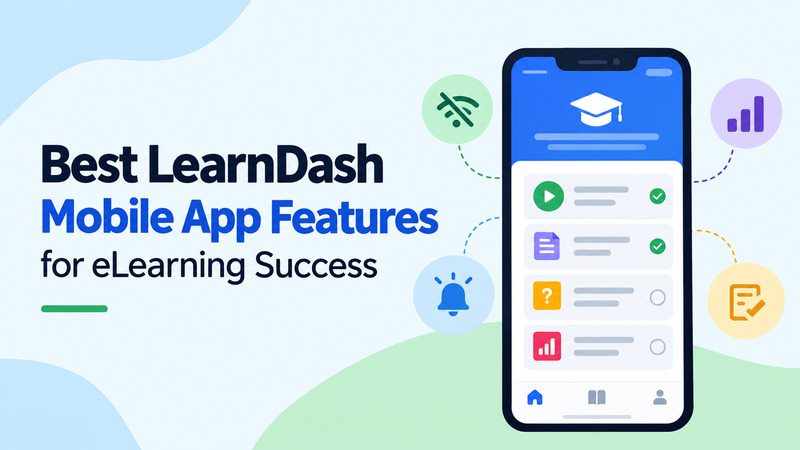
There’s no such thing as having a steady internet connection. Some students are in weak-signal zones, some go on a lot of trips, and some are just looking to save up their mobile data. Lessons, videos or reading material should be able to be downloaded so that students can continue without an internet connection, as part of offline access.
This is a great benefit to busy professionals or students living in areas where coverage is intermittent. If a student is on a long flight or a rural bus route, they can complete a module rather than waiting to get back online– that sort of flexibility can often keep the momentum going until they return to the internet. However, offline learning is not supported by all apps and setups. You should test your selected choice first and see how much it can do, rather than promising students something it can’t do, because a broken promise costs more trust than a missing feature.
3. Push Notifications
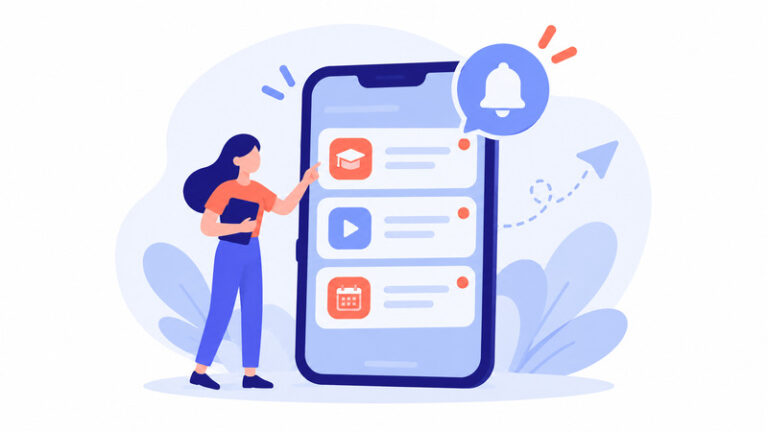
A gentle nudge can bring a learner back at the right moment. Push notifications work well for:
- Reminders about unfinished lessons
- New content or drip-released modules
- Upcoming deadlines or live sessions
- A quick congratulations after finishing a module
The key to this is moderation. Send too many alerts and people switch them off, or delete the app. One timely reminder works more effectively than five generic reminders! It also empowers the learner to have some choice over what they receive – the person is more likely to have their reminders on if they can choose which ones to get.
4. Progress Tracking

A visible progress bar, ticks on finished lessons and a simple dashboard provide learners with momentum – the stuff that gets them through the middle of a course. A lot of people begin their courses with great enthusiasm, but halfway through they lose the steam.
Tracking progress is beneficial to you as well. If you see where students are getting stuck, you can do something to make a confusing lesson more understandable or shorten a long module. When all twelve learners stop at the same quiz, it’s likely that the quiz is the issue. Progress data is more than just an educated guess about your course, it’s factual data you can act on.
Need help improving your mobile learning experience?
Talk to our LearnDash developers today5. Mobile-Friendly Quizzes and Video
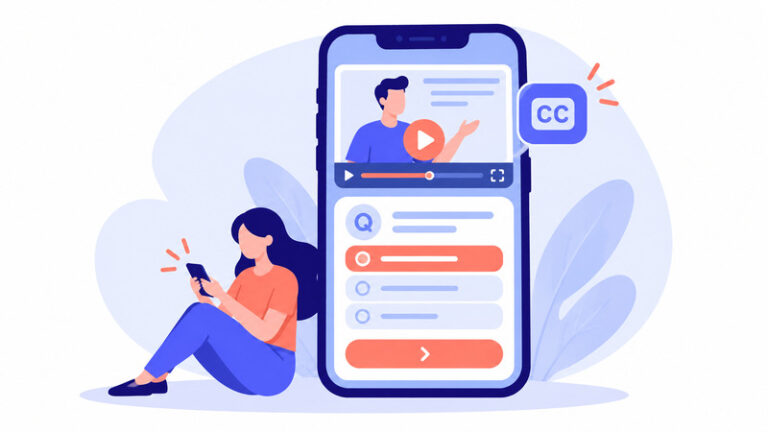
Quizzes and video sit at the heart of most LearnDash courses, so both need to work well on a phone. For quizzes, that means large tap targets, questions that do not require zooming, and easy submission for assignments. A quiz that is awkward on mobile may get skipped, which weakens both engagement and your assessment data. Advanced quiz features can also help you create assessments that are more engaging without making them harder to complete on a smaller screen.
For video, aim for:
- Fast loading, even on slower connections
- Playback that adapts to screen size
- The ability to resume where the video stopped
- Captions for learners who study in noisy or quiet places
Captions deserve extra attention. Plenty of people watch lessons with the sound off, and captions also help learners who are still building their language skills or who have hearing difficulties.
6. Community and Support Tools

It’s easier to learn when you don’t have to do it on your own. A discussion forum, lesson comments, or simple messaging can be used to provide students a platform to ask questions and share what they are learning, and can be valuable for keeping students engaged throughout a course. This is even more the case on mobile, where a learner who can’t figure out something at 9 p.m. may not be motivated to open a laptop and send an e-mail.
It is possible to avoid small issues from becoming refund requests, even with a simple method of getting in touch with support from within the app. People want quick answers, and a feeling of being supported on a course feels like the course has more value, even if the content stays the same.
Customization: The Limit You Should Know About
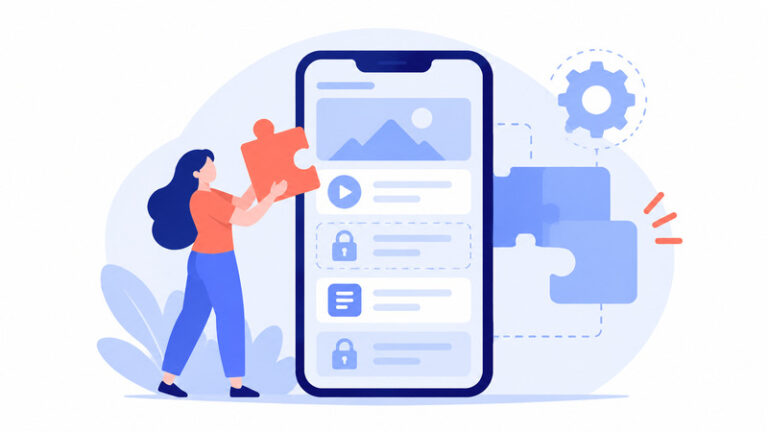
Here is the part many course owners discover late. The standard LearnDash mobile app does not allow customization. You get the app as it comes, which means limited control over branding, layout, menus, and how features behave.
For some courses, that is perfectly fine. If students only need to log in and learn, an out-of-the-box app may do the job. But if your business depends on a distinct brand experience, the limits show up quickly:
- Your logo, colors, and design cannot be fully matched to your brand
- Custom menus, extra screens, or unique learner dashboards may be off the table
- Special workflows, such as tailored enrollment steps or reporting, are hard to add
- Integrations with tools outside the standard setup can be restricted
Instead of accepting the app as is, LearnDash custom development can allow you to build tailored features, connect your platform to other systems, or shape a mobile experience around your specific learners. A training company may wish to have custom progress reports, a membership business may wish to have a brand roll similar to their website. The standard option is the default choice for many course owners, and custom work is considered when they reach a clear limit.
Do You Need a Full App?
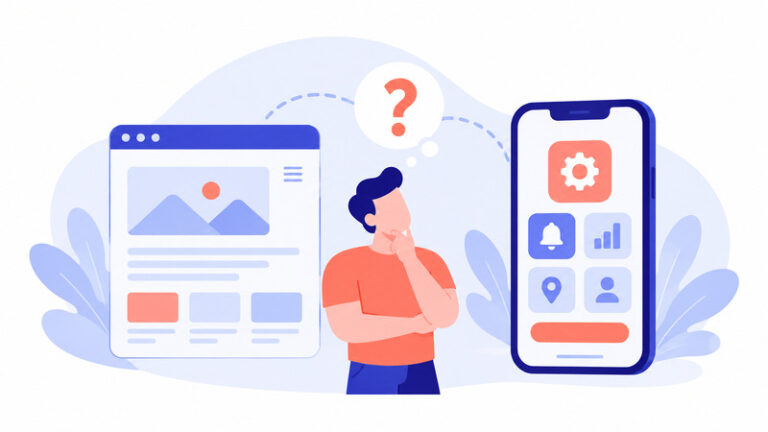
Not all courses require one. A good, mobile-friendly LearnDash site can work for a great number of learners and is less costly to keep up. An app becomes useful once you need to access it without an internet connection or you need push notifications.
One way to test this would be to open your course on a couple of actual phones, Android and iPhone, and follow a lesson and a quiz as a student would. If it feels smooth, then you don’t need to invest more at the moment. Students who continue to request reminders or lessons offline are good candidates for an app to be effective. Their requests speak louder than any feature list.
How to Choose the Right Features

You do not need everything on this list. Start small:
- Ask a few students how and where they study.
- Pick two or three features that solve their biggest problems.
- Test on multiple devices before launch.
- Collect feedback and improve in small steps.
If you make steady improvements, it’s typically a better idea than a massive launch that nobody wanted. Adding one feature per month will often produce a better experience for the course owner than launching 10 features at once and then having to maintain them. The same approach applies when you’re scaling a LearnDash LMS: focus on the upgrades that solve actual learner and administrator problems rather than adding features for the sake of it.
Final Thoughts
The best LearnDash mobile app enhancements make learning more accessible to get started and easy to complete. Most of what students are interested in is provided: fast navigation, offline access, helpful notifications, and easily followed progress tracking; as well as community tools that keep them engaged. Don’t forget the customization restrictions, or else you may be in for an unpleasant surprise later.
When you’re not sure about which route you want to pursue, it can save you time and money to talk to a LearnDash expert before committing. Whatever it may be, observe your students’ learning processes then expand upon that.
Frequently Asked Questions
Can I customize the LearnDash mobile app?
The standard app is not customizable and branding, layout and features remain in place. If there is something custom required, the typical way is to build a custom solution.
Is a mobile-responsive website enough for my course?
Often, yes. For a lot of students, a responsive LearnDash website is just as it ought to be. The more useful an app is, the more you want it to be used offline, have push notifications, or get brand visibility.
Which mobile features should I prioritize first?
Begin with quick navigation, progress tracking and mobile quizzes and video. These impact almost all learners. Once the basic features are functioning properly, add notifications and offline access.
Will my students need internet access at all times?
This will depend on your configuration. There are some that have offline lessons as well as some that need an online connection. Double-check prior to giving promises of off-line learning to your students.
Do mobile features really improve course completion?
They can contribute in different ways, such as making lessons more accessible to begin and end. Become a great consumer of your own progress data and find out what truly affects your audience.